
A noisy phone can make every notification feel unimportant. Turning everything off creates the opposite problem: useful messages disappear alongside promotions. A better reset starts by deciding which events deserve immediate attention and which can wait.
This Tech Lein workflow is designed for a personal phone. It focuses on selective changes and verification. Work-managed devices, accessibility needs and shared-family arrangements may require different choices.
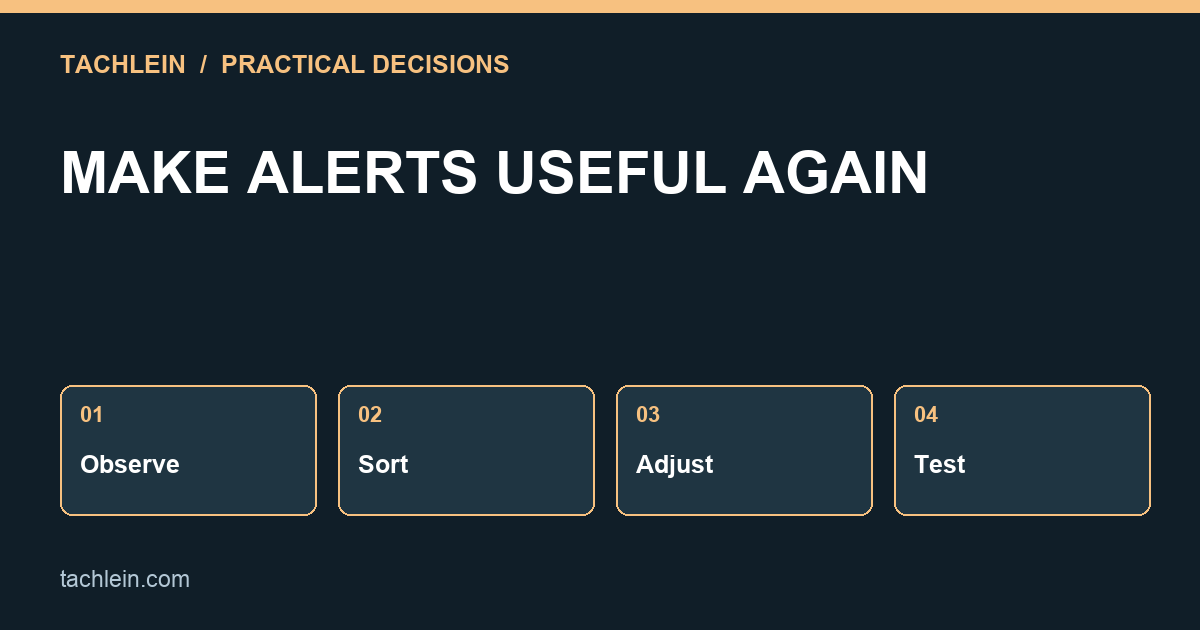
Observe before changing settings
For one ordinary day, note which apps interrupt you and why. Keep the list simple: app, type of event and whether you needed to act immediately. Do not copy private message contents into the log. Counting interruptions can reveal a pattern without creating another sensitive record.
Separate an app’s useful purpose from every message it sends. A shopping app may provide delivery updates and promotional alerts. A messaging app may carry both a priority conversation and a large social group. Your decision is often about the type of alert, not whether the whole app is good or bad.
Sort alerts into four groups
| Group | Example | Possible treatment |
|---|---|---|
| Immediate action | A conversation you need during the current task | Keep a noticeable alert |
| Time-sensitive but not urgent | A delivery update | Keep visible, consider a quieter presentation |
| Review later | A reading recommendation | Use a chosen review time or a silent option |
| No useful purpose | A promotion you never use | Turn off that category where supported |
The examples are not universal rules. A notification that is optional for one person may be important for another. Preserve the alerts on which your work, care responsibilities or accessibility setup depends, and test them before assuming a new configuration is safe for everyday use.
Adjust one app at a time
Android offers app-level notification controls, and some apps expose separate categories. Google’s notification documentation also distinguishes silent notifications from alerting ones and notes that menus vary by device. Use the options actually present on your phone rather than searching indefinitely for a setting your version does not offer.
Start with one high-volume app. Read the labels carefully, change the least important category and observe the result. Where an app also has its own notification preferences, check whether those control a different layer. Keep a short record so you can reverse a change that removes something useful.
Test the events you care about
- Send a harmless test message from an authorised account or ask someone you know to help.
- Check the phone while it is unlocked and again while locked.
- Test any scheduled quiet period or focus mode you normally use.
- Confirm that the notification is visible, audible or accessible in the way you intended.
- Revisit the configuration after a normal day, not only after the test.
Silencing an alert is different from delaying its delivery. If an expected event is missing altogether, investigate connectivity, app settings and the app’s documented behaviour. Do not disable every battery or security feature as a first response.
Keep private information off unnecessary surfaces
A lock screen can expose message previews to people nearby. Decide whether you need full content, a sender name or only an indication that something arrived. The right choice depends on how the phone is used, especially in a classroom, shop counter or shared workspace.
Do not grant a new third-party app access to all notifications just to reduce noise without understanding that access. Built-in controls may be sufficient. Notification contents can include account messages and personal information, so the convenience of one dashboard has a privacy cost worth considering.
Try a realistic reset, not a permanent vow
Example: a student keeps direct messages from a project group noticeable, makes a reading app silent and disables a store’s promotional category while retaining order updates. After two days, they discover that the project group also carries casual chat. They refine that group or its schedule instead of muting every message app.
Keep a weekly review short: what interrupted me unnecessarily, and what did I miss? The aim is reliable attention, not a perfect zero-notification screen. A configuration that needs constant policing is usually too complicated for the routine it is supposed to support.
Continue with the right Tachlein guide
- a practical digital-detox plan
- choosing productivity tools
- Techlein Study Workflow: Turn Online Lessons Into Learning
- Tech Lein Streaming Checklist: Picture, Captions and Data
Editorial note: Prepared with AI assistance and checked against the primary sources linked in this guide on 27 October 2026. Examples and worksheets are illustrative; they are not claims of hands-on product testing. Features and terms can change. Use the linked provider guidance for current details.