
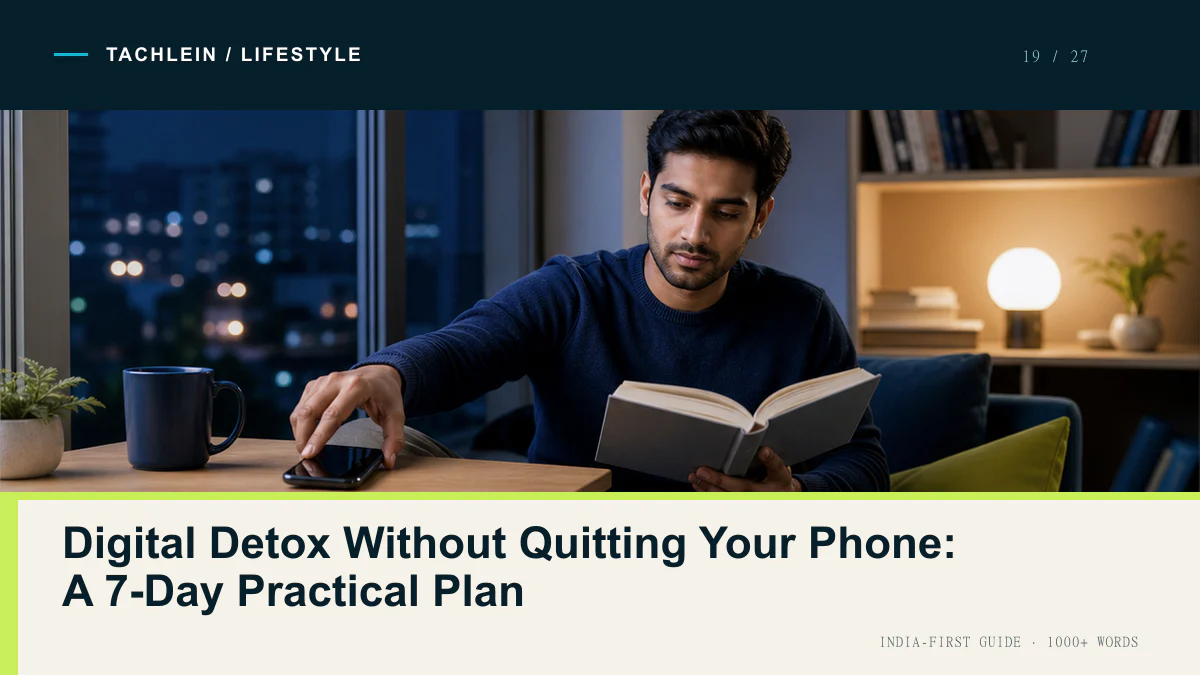
Most advice about a digital detox starts from a premise that does not survive contact with real life: that you should put the phone in a drawer for a weekend and emerge cleansed. For almost everyone reading this, that is neither possible nor useful. Your UPI payments are on that phone. So is your office group, your building’s WhatsApp group, your train ticket, your parents’ video calls and the maps app that gets you home. Quitting is not the goal, and treating it as the goal is why most detoxes collapse by Tuesday evening.
The goal worth aiming at is narrower and much more achievable: getting back the attention you did not intend to spend. Not the forty minutes you deliberately spent watching a match highlight or catching up with a cousin — that was a choice, and it was fine. The other kind. The unlock at a red light that becomes eleven minutes. The “quick check” at 11:40 pm that ends at 1 am with no memory of what you saw. That gap between what you meant to do and what you did is the only thing this plan targets.
Nothing below asks you to delete anything permanently, and nothing here is a moral test. If you have a week where none of it holds, the week was busy. That is all it means.
The size of the problem, honestly stated
EY’s annual media and entertainment analysis found Indians spent roughly 1.1 trillion hours on smartphones in a single year, working out to about five hours a day per user, with close to 70% of that going to social media, gaming and video. India crossed a billion internet users, and short-video formats — Reels, Shorts, and the in-app feeds now bolted onto shopping and payment apps — take a disproportionate share of it.
Two things follow from that. First, five hours is not an aberration; if your Digital Wellbeing dashboard says something similar, you are ordinary, not broken. Second, short video is genuinely a different animal from older forms of scrolling. A feed of fifteen-second clips has no bottom, no natural pause and no moment where the content signals that it is finished. Text feeds eventually run out of new posts. Short video never does. Any plan that ignores this and tells you to “just be mindful” is ignoring the actual mechanism.
Why willpower keeps failing you (and what works instead)
Resolving to use your phone less is a plan that has to be re-executed hundreds of times a day, mostly at moments when you are tired, bored or waiting for something. Every one of those moments is a fresh decision, and the app is designed by a large team to win exactly that decision. You will lose most of them. That is not a character flaw; it is arithmetic.
Friction works differently. Instead of deciding repeatedly, you decide once, in a calm moment, and then arrange things so the unwanted behaviour costs a few extra seconds. Those seconds matter enormously, because most compulsive checking is not a strong craving — it is a weak, habitual reach that dissolves the moment it meets any resistance. Moving Instagram off your home screen does not stop you from opening Instagram. It stops the version of you that was not really trying.
So every step in this plan is a setting change or a physical rearrangement, not a promise. Settings hold when motivation does not.
The seven days
Do one per day. Keep the previous days’ changes running. If a day’s change turns out to be wrong for your life — the phone-free zone that breaks your work, the app limit that blocks something you genuinely need — undo it and move on. Nothing here is compulsory.
Day 1: Look at the numbers before you change anything
Do nothing except find out where you actually stand. On Android, open Settings → Digital Wellbeing & parental controls and read the dashboard: total screen time, number of unlocks, number of notifications received. On iPhone, Settings → Screen Time → See All App & Website Activity, then switch to the weekly view.
The number that predicts most is not hours — it is unlocks. Two hours across 30 unlocks is a person using a tool. Two hours across 140 unlocks is a person being interrupted. Write both down somewhere you will find them on Day 7. Takes five minutes, changes nothing yet, and gives the rest of the week a baseline instead of a vibe.
Day 2: Cut notifications down to humans
This is the single highest-yield change, and it takes fifteen minutes. The rule: only things a person specifically sent to you may make a sound or light up your screen. Everything else can wait until you open the app.
On Android, go to Settings → Notifications → App settings, sort by “Most recent” and work down the list, turning off everything that is not a message from a human. Shopping apps, food delivery, news, games, and the “someone you may know posted a video” class of alert — all off. On iPhone, Settings → Notifications, tap each app, and set the noisy ones to Deliver Quietly or off entirely.
Then batch what remains. iPhone has Settings → Notifications → Scheduled Summary — add the apps you want but do not need instantly, and pick two delivery times, say 1 pm and 8 pm. Android does not have a true equivalent, so approximate it by setting the same apps to Silent so they collect in the shade without buzzing.
Expect the first day to feel slightly wrong, like you have missed something. You almost certainly have not.
Day 3: Move the pull apps off your home screen
Long-press whichever two apps your Day 1 dashboard put at the top, and move them into a folder on your last home screen page — or on Android, into the app drawer only. Do not delete them. The point is that opening them now requires a swipe and a deliberate search rather than a thumb landing on muscle memory.
On iPhone, you can go further: long-press the app, tap Remove App → Remove from Home Screen, which keeps it in the App Library and reachable by search but removes it from view. Leave your home screen with the boring, useful things — camera, phone, maps, UPI, calendar. If you want to go further on rebuilding a functional home screen, our roundup of productivity apps worth using in India covers what actually earns a slot.
Two minutes of work. Typically the most noticeable single day of the week.
Day 4: Set one honest app limit
One app. Not five. Pick the one you most wish you used less, and set a limit that is slightly below your current average rather than aspirationally low — if the dashboard says 95 minutes, set 75, not 20. A limit you blow through on day one teaches you to ignore limits.
Android: Settings → Digital Wellbeing → Dashboard, tap the hourglass icon next to the app, set the timer. Once the timer expires the app icon greys out for the rest of the day. iPhone: Settings → Screen Time → App Limits → Add Limit, choose the app or the whole Social category.
Both systems let you override the block, and you will sometimes override it. That is fine — the value is in the pause and the small announcement that you have used up what you planned to use.
Day 5: Give the phone a night shift
Late-night scrolling is the usage people most consistently regret, partly because it eats sleep and partly because it is the least chosen. Set a window — say 11 pm to 7 am — where the phone becomes deliberately dull.
Android: Settings → Digital Wellbeing → Bedtime mode. Set the schedule, then open Screen options and enable Grayscale and Keep the screen dark. Do Not Disturb turns on with it. iPhone: Settings → Screen Time → Downtime for the app blocking, plus Settings → Focus → Sleep for the notification side. Use Always Allowed on iOS (and Digital Wellbeing’s exceptions on Android) to keep calls from family getting through — this is meant to protect sleep, not cut you off in an emergency.
If you charge the phone in the bedroom, moving the charger to another room is the version of this that works best, but a scheduled grey screen is a real improvement on nothing.
Day 6: Declare one phone-free zone or slot
Pick a place or a recurring time, and be specific. The dining table during dinner. The first twenty minutes after you wake up. The commute back, if you are not driving. One only.
The trick that makes this stick is having somewhere for the phone to go — a bowl by the door, a specific drawer, the shelf near the kitchen. “Not on me” needs a physical destination, otherwise it stays in your pocket by default. Tell whoever lives with you what you are doing, because if the household expects you to answer instantly, no setting will hold.
Day 7: Look again, then decide what stays
Re-open the same dashboard from Day 1 and compare screen time and, more importantly, unlocks. Then run the more useful review: which of the six changes did you barely notice, and which did you fight? Keep the ones you barely noticed permanently — those are free. Loosen the ones you fought. An app limit you resented every single day is not going to survive month two, so replace it with something gentler rather than repeatedly failing at it.
A phone that feels slow makes idle checking feel worse and deliberate use feel worse too, so if yours is sluggish, a cleanup pass using our guide on speeding up an Android phone is a reasonable Day 7 companion.
The whole week at a glance
| Day | The change | Time it takes | What you should notice |
|---|---|---|---|
| 1 | Record screen time and unlock count | 5 minutes | Mild surprise at the unlock number, not the hours |
| 2 | Notifications limited to messages from people | 15 minutes | Quieter phone; a day or two of phantom-buzz feeling |
| 3 | Top two apps moved off the home screen | 2 minutes | You catch yourself tapping empty space — the habit made visible |
| 4 | One realistic daily app limit | 3 minutes | A useful pause in the evening rather than a hard stop |
| 5 | Bedtime mode / Downtime with grayscale | 10 minutes | Late sessions end earlier; the screen stops being appealing |
| 6 | One phone-free zone or time slot | 5 minutes to set up | Conversations and meals that do not get interrupted |
| 7 | Review, keep what was easy, loosen what was not | 10 minutes | A short list of changes you can actually live with |
What the research supports, and what it doesn’t
It is worth being straight about this, because the popular version of this topic is far more confident than the science.
Reasonably well supported: interruptions are costly. Notifications pull attention even when you do not act on them, and returning to a task after a break takes real time. Reducing notification volume is the intervention with the most consistent support. Grayscale also has direct experimental evidence — a 2024 study of university students found about a 20-minute daily reduction in screen time during a week of grayscale use, a medium effect. Notably, unlock counts did not change; people checked as often but stayed for less time. Friction effects like moving apps out of easy reach are consistent with a large body of behavioural work on choice architecture.
Weakly supported or overstated: the claim that any specific number of hours is harmful. The relationship between total screen time and wellbeing in large studies is real but small, and heavily dependent on what you are doing — video-calling family is not the same activity as passively scrolling, though a screen-time counter records them identically. The famous “23 minutes to refocus” figure comes from one small observational study and is repeated far beyond what it can carry. Claims that phones have “destroyed” attention spans are not established; measurement of attention span across decades is genuinely difficult, and researchers disagree.
Honest conclusion: the case for this plan is not that your brain is being damaged. It is that a lot of phone time is not chosen, and reclaiming unchosen time is worth a few settings changes even if the health stakes are modest. That is a smaller claim, and it happens to be true.
One more note, briefly: if phone or social media use is seriously affecting your sleep, work, relationships or mood — and settings changes have not moved it — talking to a doctor or a mental health professional is a sensible step, not an overreaction.
Common questions
Do I need a third-party app blocker?
Usually not for a first attempt. Digital Wellbeing and Screen Time cover timers, downtime, grayscale and app pausing without another app collecting your usage data. If you do install one, check what permissions it asks for first — accessibility and usage-access permissions are powerful, and our guide to Android privacy settings for Indian users explains what those actually allow.
What if my work runs entirely on WhatsApp?
Then WhatsApp is a work tool, and you exempt it. Turn off group notifications for the groups that are not urgent, keep individual chats on, and put the app limit on something else. A plan that blocks your livelihood is a bad plan, not a strict one.
Is grayscale worth keeping all day?
Some people love it; most find it impractical because photos, maps and payment screens rely on colour. A good compromise is scheduling it at night and setting a quick manual toggle for other times — iPhone: Settings → Accessibility → Accessibility Shortcut → Color Filters, then triple-click the side button. Android varies by manufacturer; look for a grayscale or monochrome tile in Quick Settings.
Will one week actually change anything?
A week is enough to change your settings and get a first reading, not enough to rewire a habit. The realistic outcome is that three or four of the seven changes stick because they cost you nothing, and those keep working quietly for months. That is a real result, even if it sounds unimpressive.
My screen time went up during the week. Did I fail?
No. A busy work week, travel, a family situation or a long stretch of waiting somewhere will all raise the number, and none of them are personal failures. Look at unlocks and at how the time was spent rather than the total. If the extra hours were video calls and navigation, nothing has gone wrong at all.
Where to check the official settings
Menu names shift between Android versions and manufacturer skins, so if something above does not match your phone, go to the source: Google’s Digital Wellbeing help page and Apple’s Screen Time guide both list current paths for their platforms.
Settings paths and feature names checked August 2026 against current Android and iOS builds. Samsung, Xiaomi, OnePlus and other skins may label some of these menus differently.